ArgoCD - Developer’s Guide
Summary
Argo CD is an efficient continuous delivery tool explicitly designed for Kubernetes. Also offers an intuitive WebUI that enables developers to gain a visual representation of their applications on the EKS cluster. This can be achieved by defining your application utilizing Kubernetes manifests in YAML format, Kustomize, or Helm charts.
Within our organization, we have decided to streamline the process of providing and deploying the software by utilizing Helm charts, as opposed to other options. Thus, we have chosen Argo CD as a provider for our continuous delivery pipeline for Helm chart applications, leveraging Argo CD’s robust WebUI, which empowers developers to take ownership of deployment as well.
This guide provides an overview of how developers can use Argo CD to streamline their application deployment process.
Quick Start
We have set up ArgoCD for each of our EKS clusters:
ArgoCD URLs
- ACE EKS Test (exclusively for staging and test environments): https://argocd.eks.test.gred.ai/
- ACE EKS Prod (exclusively for production environments): https://argocd.eks.prod.gred.ai/
Please note that these URLs are only accessible from the office or over the enterprise VPN. Furthermore, access to Argo CD has been configured through Okta. Any team belonging to the
gred_ecdigroup will be granted access to the tool.
Brief overview of the Architecture
CI/CD Pipeline with ArgoCD:
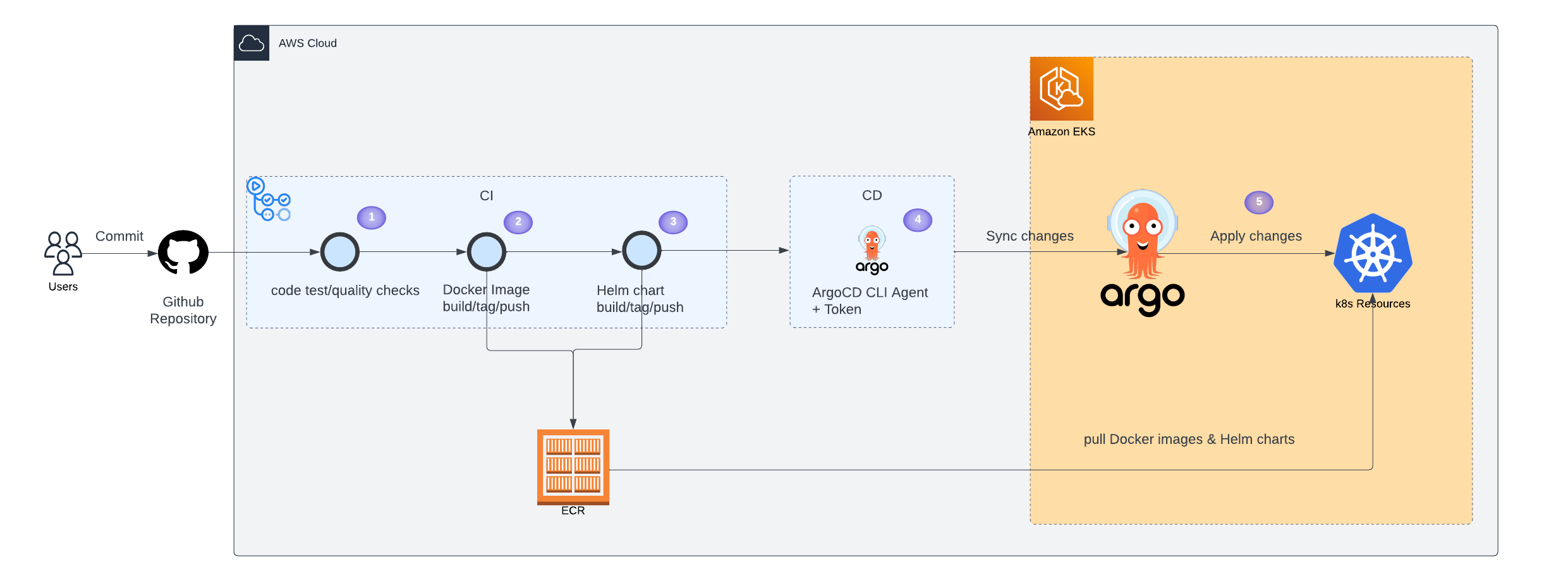 src: Lucidchart
- Check test cases and verify the quality of code by running it against tools (e.g, codeql)
- Build, tag, and push Docker images to AWS Elastic Container Registry (ECR).
- Build, tag, and push Helm chart packages to AWS ECR. A Helm chart is a package containing all the necessary resources for deploying an application to a Kubernetes cluster. This includes YAML configuration files for deployments, services, secrets, and config maps that define the desired state of your application.
- ArgoCD CLI authenticates itself to Argocd with a token and inform Argocd of any changes to be made to the deployed application.
- Argocd applies any necessary changes to the Application’s Kubernetes resources.
To visit an example of CI/CD pipeline, please check Containerization Template repository.
Terms
Here are some terms related to ArgoCD that will help you better understand the content of this document:
-
ArgoCD AppProject: Each ArgoCD application must be part of an AppProject. You have access to AppProject of
<your_team>-default. -
ArgoCD Application: This is the main component where we define our application, its repository location, custom helm values, and more.
Getting Started with ArgoCD
Prerequisites
To use Argo CD, there are some prerequisites you need to meet :
-
Target Environment: Argo CD is designed specifically for deploying applications to Kubernetes clusters. Therefore, ensure that Kubernetes is your target environment for application deployment. If you’re not using Kubernetes, Argo CD won’t be suitable for your use case.
-
Application Manifests: Additionally, for deploying applications on Kubernetes, you’ll need to define your application using Kubernetes manifests in Helm charts. While we will provide a default Helm chart soon, you can use existing examples on the internet or organization GitHub repositories for now.
Deploy your application on ArgoCD via Github Action
Step 1. Create Role and JWT Token for Your Application
Inorder to github action have access to ArgoCD, it needs a token to authenticate itself. To create one,
-
- Go to
settings > <your_team>-default project > + Add Roles
- Go to
-
- Create a role.
-
- Then create a JWT token for it, you can specify name and expire date for it.
Keep in mind that this token is only shown the moment you create it, make sure to copy it
Step 2. Save JWT Token in Github Secrets
In your github repository, save the token under settings > secrets and variables > Actions
Under specific name like ARGOCD_TOKEN so you can pass it to the Github Action.
Step 3. Create ArgoCD Application Manifest
You should create a file for helm-based ArgoCD application. You can have different files for different deployment environments. It’s better to put them in a specific directory, for example, deployment directory.
Here is suggested directory:
deployment
	|___ environments
       |___ production
       |     |___ production_application.yaml
       |___ staging
             |___ staging_application.yaml
Here is an example of a helm-based ArgoCD application:
apiVersion: argoproj.io/v1alpha1
kind: Application
metadata:
  name: <application_name>
spec:
  destination:
    namespace: <namespace_name>
    server: 'https://kubernetes.default.svc'
  source:
    repoURL: <registry_URL>
    targetRevision: {{ env.get('HELM_CHART_VERSION') }} ## This is jinja language
    chart: <repo_URL>
    helm:
      values: |
        replicaCount: 1
         image:
            tag: {{ env.get('TAG') }} ## This is jinja language
  project: <name_of_AppPorject>
For example, for eyenotate application we have production and staging environment, so we put ArgoCD applications file for each. You can see this here.
You should add the new docker image tags and helm chart version to ArgoCD Application in each Github Action run. For this case you can use
jinja2to customize your file based on the values you pass. Check Containerization Template for more datails.
Step 4. Github Action file
Please check Containerization Template for Github Action templates.
Deploy your application on ArgoCD via WebUI
This approach is not advicable, but still you can deploy your application via WebUI as well.
Please go to the New APP.
1 General:
- Choose a name for your application
- Choose your project, your project name is based on your team name
<team_name>-default. - Put
SYNC PolicytoAutomatic
2 Source:
- Choose the repository ECR repositry.
- For
Chart, specify the name of helm chart repository, in front of it specify the helm version
3 Destination:
- Choose
https://kubernetes.default.svcasCluster URL. - For
Namespace, type which namespace you want your application be deployed.
4 Directroy:
- Change it to Helm
- Now you can add your helm values under
VALUES
Then Create it.
FAQ
1. We deployed our appliction via ArgoCD, where we can see the monitoring and logging of our application?
All of the application on EKS have monitoring and logging by default. You can find them here:
| Dashboards | Description |
|---|---|
| EKS Ace Test - Applications | Select your application namespace in the namespace field |
| EKS Ace Prod - Applications | Select your application namespace in the namespace field |
2. I receive an invalid signature error when using GitHub Action. How can I resolve this issue?
The error is likely occurring because your token has expired:
time="2024-03-19T19:30:18Z" level=fatal msg="rpc error: code = Unauthenticated desc = invalid session: signature is invalid"To fix this issue, please follow the instructions outlined in the Step 1. Create Role and JWT Token for Your Application section to renew your token.