Background
This page describes the steps to rotate the password for these three generic RADA accounts: gcr01dev gcr01uat gcr01prd
These generic RADA accounts are used by the ACE Data Engineering team for running ETL jobs.
NOTE: As of 2023 February 6th, responsibility for password rotation has been transferred to the ACE Data Engineering team. If you encounter any issues, please ensure you consult with the team before taking any action.
Overview
The passwords must be rotated every 90 days or the accounts will stop working. This will impact the successful ability of ETLs to run successfully.
The overall process is as follows:
- Log into CIDM and select the “Change Generic Account Password” for an account which you are not owner
- Once the password is changed, update the password in AWS Secrets Manager
- Update the password in LastPass.
Procedures
- Log into CIDM
- In the menu on the left, under passwords and preferences, select “Change Generic Account Password”
- Uncheck “Are you the account owner?” and under the Generic Account box, type in the unix id of the account and select the account from the dropdown and click Next.
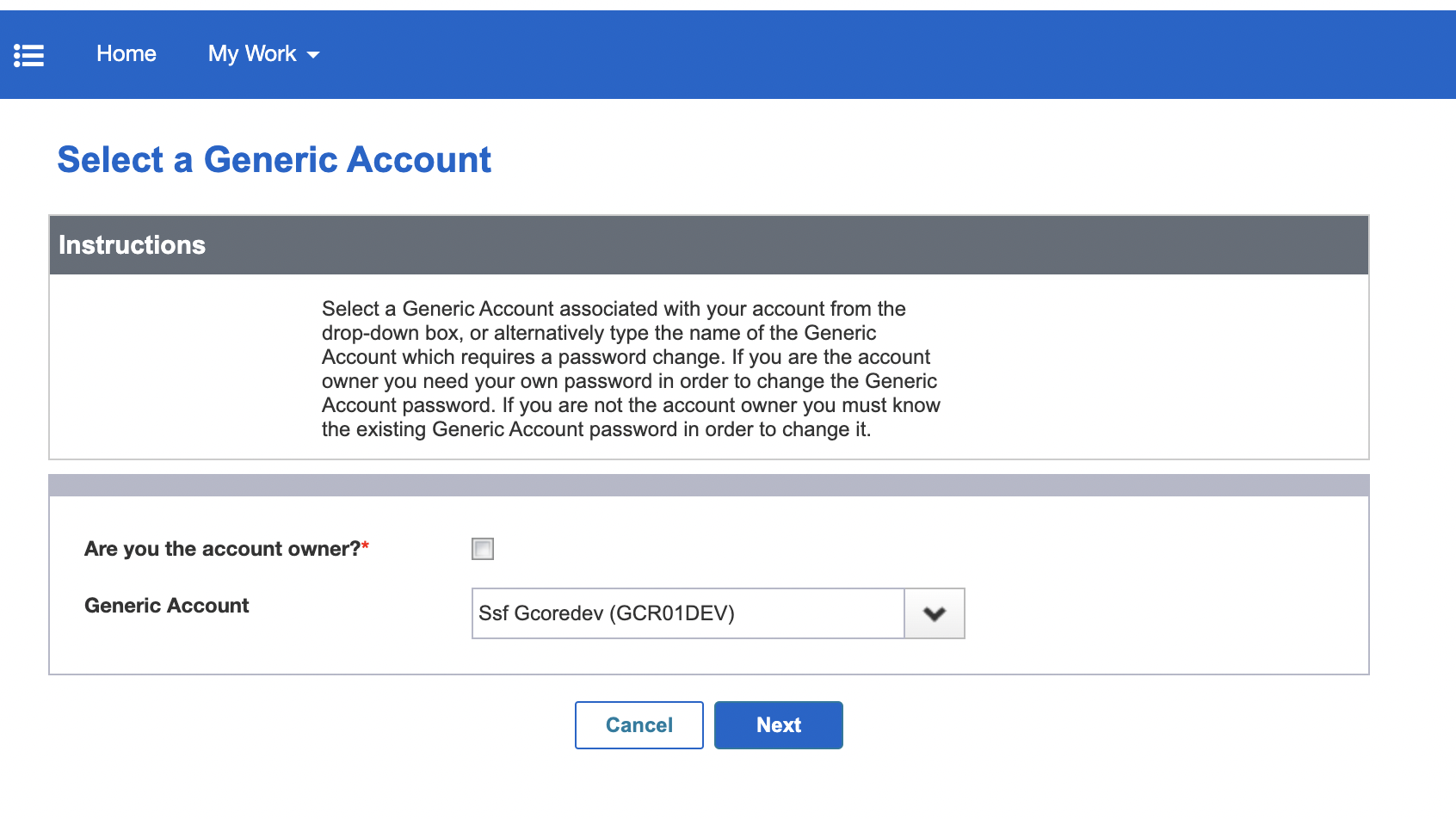
- Input the old password. This can be pulled from either LastPass or Secrets Manager. Use a password generator to generate a passphrase with 5 words and a numeric separator between the words. For example
WordA21WordB77WordC78WordD79WordE87and click next. - You should get a prompt that the password was successfully changed. If you do not receive this prompt, review any error messages and take the appropriate action.
- Next, update the password vaults in Secrets Manager. Go to the “etl_admin_<env>” vault where env matches the value from the account (dev, uat, prod). Click “Retrieve secret value”. See the value for the secret key called
Password. All vaults use the secret key ofPassword. - Click the Edit button and find the secret key called `Password’ and delete the current value and add the new password to update the value. Click Save in the bottom right hand corner.