What is it?
- V7 Annotation is a hybrid cloud product from V7 Labs
- Hybrid Cloud - Data hosted on Roche Ace Infra Cloud, Annotation process performed on V7 Cloud
- It can annotate 3D, DICOM images with more accurate, user friendly features there by saving overall annotation time.
- It also expands current labelling functionality and make it available to serve the DICOM needs of the customers
- More Information of the vendor can be found at https://www.v7labs.com/
Engagement Model:
https://docs.google.com/presentation/d/1mjZGizFIcIU5QnC3I27QEyDSl9lRGonIknxBrh7NJLA/
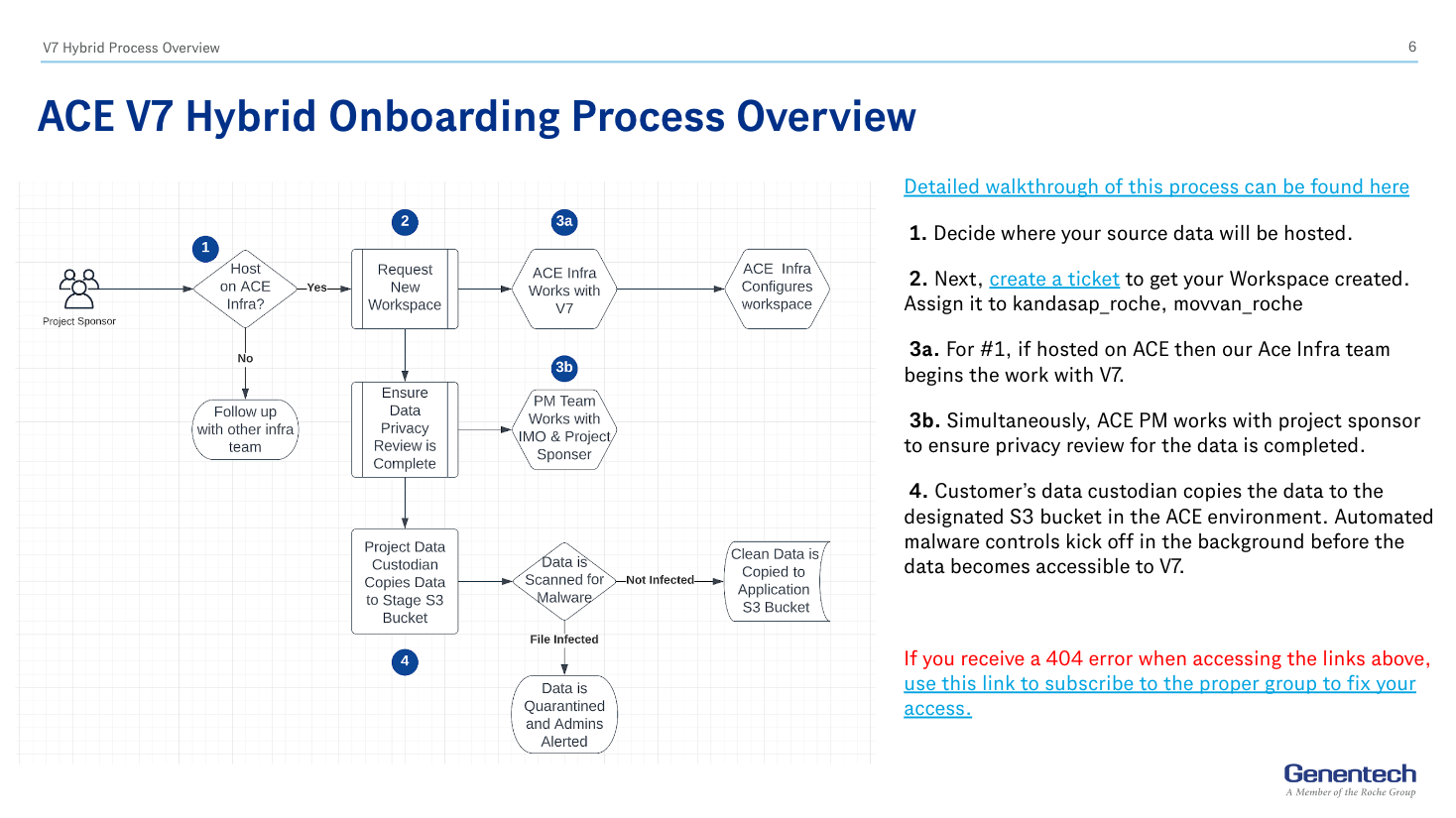
Workspace Overview
Below is the current view of Workspaces as of Apr 20 2025
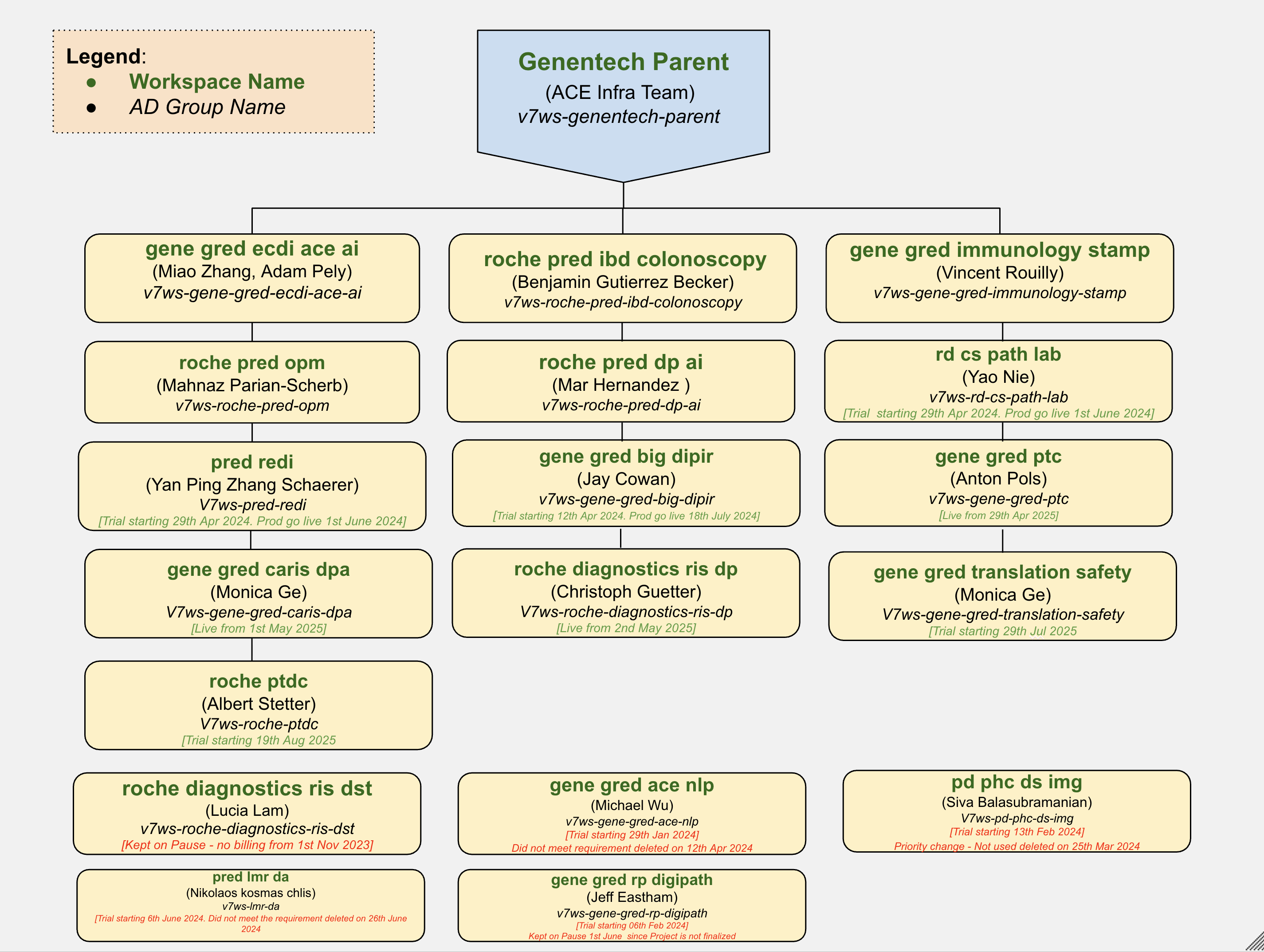
Above Picture Source: https://docs.google.com/drawings/d/12SIMhL_yD_mpBu8Em9iXw_dYJGymBJLqDGue2SDtw_M/
User & Support Guides
Access Request & Login:
- Raise CIDM to add you to Active Directory (AD) group listed on workspace diagram above
- After CIDM completion use V7 Login Portal to login: https://darwin.v7labs.com/
- Use single sign-on —> Type your workspace name [It is case sensitive] —> Enter your SSO details to login
- If you have trouble logging in reach out support via slack channel
ext-ecdi-v7under gred.slack.com
First Time Login Limited Access:
- After you logon first time, you will be given
workerrole by default. - Reach out to
gCS Infra adminvia slack channelext-ecdi-v7under gred.slack.com to change worker role to admin - worker role will have limited permission. More details about roles can be found under https://docs.v7labs.com/docs/user-roles#worker
What is created during workspace setup:
- To comply with Roche security policy, v7 reads files from S3 managed by Roche AWS Environment
- During workspace setup, s3 bucket is created with
<bucket-name>-stagingand<bucket-name-prod - Files are uploaded to staging, virus scan is triggered automatically and if there is no issue file is copied to prod bucket
- V7 reads the file from prod bucket
What is the first step on using V7
- First step after uploading file to S3 is to perform image registration: https://docs.v7labs.com/docs/registering-items-from-external-storage#the-basics-1
- Logon to V7 —> Navigate to your workspace —> dataset —> Click on Create New Dataset. [Try using single word or multiple word with -,_ and without space]
- Logon to V7 —> settings —> API Keys —> New API Key
- Points to remember on the above document
team_slug = “your-team-slug-here”
#V7 workspace name with - added to itdataset_slug = “your-dataset-slug-here”#Dataset Name which you created earlier on V7storage_name = “your-storage-bucket-name-here”#Your s3 prod bucket - If you need to register multiple files. Use the code below
- Before running this code, you need to connect to AWS via AWS CLI
- If you are using Techops ACE Infra connect to AWS command line —> AWS CLI Access —> Step 1 to 5
import boto3
import requests

# Connect to the S3 bucket
s3 = boto3.client('s3')

# Your AWS bucket name
bucket_name = 'v7-roche-pred-opm-prod'

# List objects within the bucket
objects = s3.list_objects_v2(Bucket=bucket_name)

# List objects within the bucket and subfolder if needed
#objects = s3.list_objects_v2(Bucket=bucket_name, Prefix='data/enface_mahnaz2/') #If you want files from subfolder use this and comment above command

# V7 API setup
api_key = "YOURAPIKEY"
team_slug = "roche-pred-opm" #CHANGE-IT
dataset_slug = "enface_mahnaz2" #CHANGE-IT
storage_name = "v7-roche-pred-opm-prod" #CHANGE-IT

headers = {
  "Content-Type": "application/json",
  "Accept": "application/json",
  "Authorization": f"ApiKey {api_key}"
}

# Initialize payload
payload = {
  "items": [],
  "dataset_slug": dataset_slug,
  "storage_slug": storage_name
}

# Iterate over each object in the bucket
for obj in objects.get('Contents', []):
  file_name = obj['Key']
  if file_name.endswith('.jpg'): ##CHANGE-IT depending on your file type
    payload['items'].append({
      "path": "/",
      ## Below value will change depending on the object type (.img, .avi, .pdf) etc. Check below vendor document
      ## https://docs.v7labs.com/docs/registering-items-from-external-storage#the-basics-1
      "slots": [
        {
          "as_frames": "false",
          "slot_name": "1",
          "storage_key": f"{file_name}",
          "file_name": f"{file_name.split('/')[-1]}"
        }
      ],
      "name": f"{file_name.split('/')[-1]}"
    })

#print(payload) #To test before loading to V7 uncomment print command and comment everything below this line

#Send request to V7
response = requests.post(
  f"https://darwin.v7labs.com/api/v2/teams/{team_slug}/items/register_existing",
  headers=headers,
  json=payload
)

# Process response
body = response.json()
if response.status_code != 200:
  print("request failed", response.text)
elif 'blocked_items' in body and len(body['blocked_items']) > 0:
  print("failed to register items:")
  for item in body['blocked_items']: print("\t - ", item)

  if len(body['items']) > 0: print("successfully registered items:")
  for item in body['items']: print("\t - ", item)
else:
  print("success")
Certificate Error
I got this error ssl.SSLCertVerificationError: [SSL: CERTIFICATE_VERIFY_FAILED]
Follow the below steps to fix it
-
Download certificate from https://certinfo.roche.com/rootcerts/Roche%20G3%20Root%20CA.crt
-
Rename certificate to roche_root.crt
-
Logon to command line and run below commands [Pre-requisite - Install Python on your machine,]
pip install certifipip install dos2unix -
Open python console using python3 or python on mac cli and then run below cmd
import certificertifi.where()Make a note of the certificate file directory SAMPLE OUTPUT: /Users/kandasap/.local/lib/python3.10/site-packages/certifi/cacert.pem -
Navigate to certificate file directory run the below command [replace file name if your file is not cacert.pem]
cat roche_root.crt >> cacert.pemExample: cat roche_root.crt >> /Users/UNIXID/.local/lib/python3.10/site-packages/certifi/cacert.pem -
Open the cacert.pem file to see if there is a ^M characters. If there is run below cmd, if not skip this step
dos2unix cacert.pem -
Run the installation and the issue should be resolved.
Support Channel:
- Any access or s3 issue or other issues can be communicated to
gCS Infra admin team - They can be reachable via slack channel ext-ecdi-v7 under gred.slack.com
- Eventually this process will be replaced with a support ticket
V7 Demos:
- Document annotation demo: https://www.loom.com/share/87455bec5a8848b5acc65fcfddecdce2?sid=90701a58-5e98-4860-a096-80fcd4a0d758
Admin Guide for DevOps Teams
Admin Guide (https://wiki.gred.ai/en/ACE/V7/Admin-Guide)