Document Control
| Role | Name | Title | Department |
|---|---|---|---|
| Author | Henry Singh | DevOps Engineer | ECDi ACE Infra |
| Reviewer | Todd Michael Bushnell | Platform Engineer | ECDi ACE Infra |
| Approver | Saima Sherazi | Infrastructure Lead & Manager | ECDi ACE Infra |
Purpose
This Installation Verification (IV) describes the procedures to install and configure the Direct Data Connection (DDC) application. Depending on the nature of the related Change Request, all or only some parts of this IV will require execution. The parts of this IV that do not apply must be indicated by checking the “This section is not applicable to this execution” box and providing initials and date. This document must be revised and re-approved if a Change Request requires additional information.
Scope
If executed in its entirety, all system components within the scope of this document will be installed. This IV document covers only the actual installation and configuration of the Direct Data Connection (DDC) application.
Execution Procedure
This section describes the procedure for completing this IV and the resulting supporting documents. During the course of its execution, the executor shall:
- Deploy software from the relevant software repository tool or the deployment files location in accordance with applicable standard operating procedures.
- Attach any supporting documentation, if any; signed, dated and labeled with the corresponding IV page/step numbers.
Installation Environment
This section details the target environment to which the installation package will be deployed. The name and type of instance on which the installation is being performed should be recorded in the table below.
| Step | Record of Environment |
|---|---|
| Installation Environment | ☐ Test/SIT, - [ ] UAT, ☐ Pre-Production, ☐ Production |
| Configuration Item | |
| Change Request # | |
| Deployment Artifact Location |
Installation Prerequisites
- Terraform Cloud privileged access
- Terraform Cloud Agents running in AWS account.
- Privileged access for the desired DDC AWS account
- Non-Production: AWS_ENT_B_ACEDDCDV_2026848 (951412642259)
- Production: AWS_ENT_B_ACEDDCPRD_2129961 (5501463360920)
- Read access for the desired DDC repository
- Non-Production: DDCOrg/terraform-ddc-dev
- Production: DDCOrg/terraform-ddc-prod
Installation Instructions
Please note that there are two repositories managing all of DDC infrastructure:
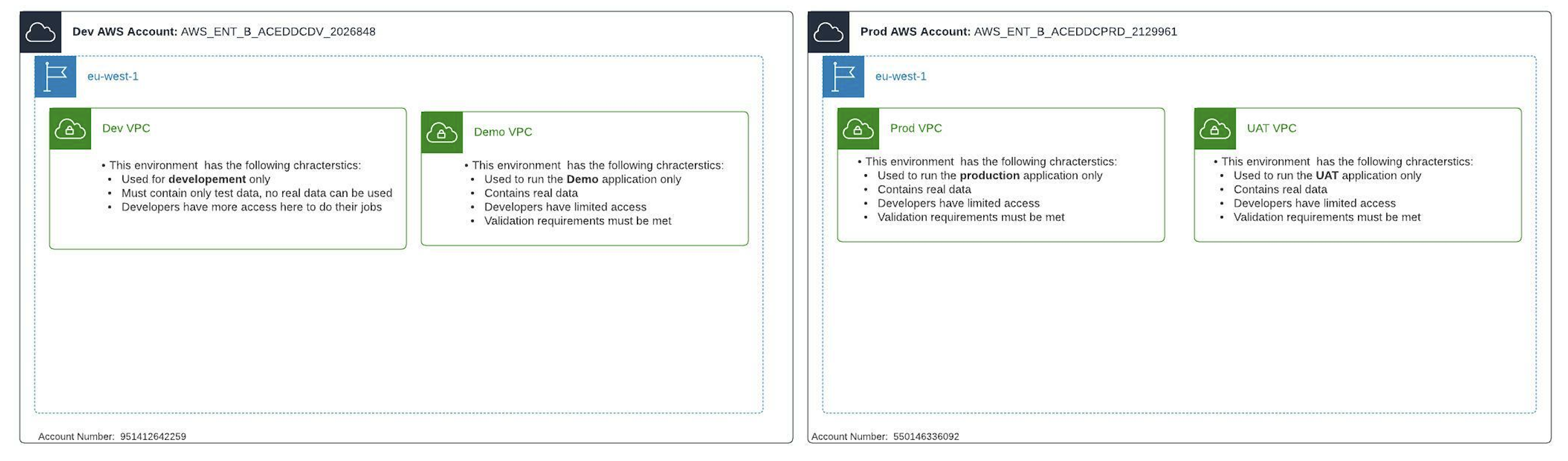
- DDCOrg/terraform-ddc-dev: Manages the Dev AWS account hosting the
test,sitanddevenvironments. - DDCOrg/terraform-ddc-prod: Manages the Prod AWS account hosting the
qa,uatandprodenvironments.
The installation procedures are effectively the same for both accounts so choose the appropriate repository depending on your use case.
AWS Infrastructure Provisioning
These instructions will install the following components:
- AWS Virtual Private Cloud (VPC)
- AWS Network Firewall
- AWS Secrets Manager
- AWS Key Management Service (KMS)
- AWS Relational Database Service (RDS)
Checkout Code
git cloneDDCOrg/terraform-ddc-dev or DDCOrg/terraform-ddc-prod, depending on your use case, andcdinto the cloned directory.
Provision AWS VPC
cdintoeu-west-1/vpc-ddc-{env}-svcs(where{env}represents your desired DDC environment)terraform initto initialize the Terraform Cloud (TFCloud) workspace- Login to TFCloud and select the newly created workspace
- Click Settings —> General, change Execution Mode to
Agentand choose the appropriateace-ddcagent pool for your use case - Click Settings —> Version Control, choose the
Version Control workflow, selectGitHub DDCOrg, select your working GitHub repository and finally set the Terraform working directory to your active directory (e.g.eu-west-1/vpc-ddc-{env}-svcs) - Set VCS branch, if applicable to your use case
- Click your workspace name to exit settings
- Click Actions —> Start new run to execute a Terraform plan
- Once complete, review the plan to ensure everything looks appropriate and then approve to provision your VPC
Provision AWS Network Firewall
cdintoeu-west-1/network-firewallterraform initto initialize the Terraform Cloud (TFCloud) workspace- Login to TFCloud and select the newly created workspace
- Click Settings —> General, change Execution Mode to
Agentand choose the appropriateace-ddcagent pool for your use case - Click Settings —> Version Control, choose the
Version Control workflow, selectGitHub DDCOrg, select your working GitHub repository and finally set the Terraform working directory to your active directory (e.g.eu-west-1/network-firewall) - Set VCS branch, if applicable to your use case
- Click your workspace name to exit the settings
- Click Actions —> Start new run to execute a Terraform plan
- Once complete, review the plan to ensure everything looks appropriate and then approve the provision of your network firewall.
Provision AWS Secret manager
cdintoeu-west-1/secrets-mgmtterraform initto initialize the Terraform Cloud (TFCloud) workspace- Login to TFCloud and select the newly created workspace
- Click Settings —> General, change Execution Mode to
Agentand choose the appropriateace-ddcagent pool for your use case - Click Settings —> Version Control, choose the
Version Control workflow, selectGitHub DDCOrg, select your working GitHub repository and finally set the Terraform working directory to your active directory (e.g.eu-west-1/secrets-mgmt) - Set VCS branch, if applicable to your use case
- Click your workspace name to exit the settings
- Click Actions —> Start new run to execute a Terraform plan
- Once complete, review the plan to ensure everything looks appropriate and then approve the provision of your secret manager.
Provision AWS KMS Key
cdintoeu-west-1/kms-keyterraform initto initialize the Terraform Cloud (TFCloud) workspace- Login to TFCloud and select the newly created workspace
- Click Settings —> General, change Execution Mode to
Agentand choose the appropriateace-ddcagent pool for your use case - Click Settings —> Version Control, choose the
Version Control workflow, selectGitHub DDCOrg, select your working GitHub repository and finally set the Terraform working directory to your active directory (e.g.eu-west-1/kms-key) - Set VCS branch, if applicable to your use case
- Click your workspace name to exit the settings
- Click Actions —> Start new run to execute a Terraform plan
- Once complete, review the plan to ensure everything looks appropriate and then approve the provision of your kms key.
Provision AWS RDS Database
cdintoeu-west-1/rds-clusterterraform initto initialize the Terraform Cloud (TFCloud) workspace- Login to TFCloud and select the newly created workspace
- Click Settings —> General, change Execution Mode to
Agentand choose the appropriateace-ddcagent pool for your use case - Click Settings —> Version Control, choose the
Version Control workflow, selectGitHub DDCOrg, select your working GitHub repository and finally set the Terraform working directory to your active directory (e.g.eu-west-1/rds-cluster) - Set VCS branch, if applicable to your use case
- Click your workspace name to exit the settings
- Click Actions —> Start new run to execute a Terraform plan
- Once complete, review the plan to ensure everything looks appropriate and then approve the provision of your RDS cluster.
Provision Direct Data Connection (DDC) Application
cdintoeu-west-1/eu-west-1/ddc-app-stack/{env}(where{env}represents your desired DDC environment). and create a Terraformmain.tf,terraform.tfandoutputs.tffile under the appropriate environment path (e.g.eu-west-1/ddc-app-stack/{env}).terraform initto initialize the Terraform Cloud (TFCloud) workspace- Login to TFCloud and select the newly created workspace
- Click Settings —> General, change Execution Mode to
Agentand choose the appropriateace-ddcagent pool for your use case - Click Settings —> Version Control, choose the
Version Control workflow, selectGitHub DDCOrg, select your working GitHub repository and finally set the Terraform working directory to your active directory (e.g.eu-west-1/ddc-app-stack/{env}) - Set VCS branch, if applicable to your use case
- Click your workspace name to exit settings
- Click Actions —> Start new run to execute a Terraform plan
- Once it’s finished, please review the plan to make sure everything looks appropriate and then approve to provision of the ddc application stack.
Here is the folder structure for the DDC application
├── eu-west-1
│   ├── ddc-app-stack
│   │   ├── dev
│          ├── main.tf
│          ├── outputs.tf
│          ├── terraform.tf
│          ├── README.md
├── global
└── .gitignore
Example
# main.tf (resource file)
module "ddc_{env}" {
  # environment must match the environment name added to iMedidata's whitelist
  # and database_schema_name cannot contain hyphens
  source                 = "app.terraform.io/gene-gred-ace/ddc-stack/module"
  version                = "1.0.6"
  name                   = "ddc"
  environment            = "{env}"
  domain_name            = "gene-ddc-dev.com"
  vpc_name               = "ddc-svcs-{env}"
  github_connection_name = "roche-github-enterprise"
  repo_name              = "DDCOrg/gene-ddc"
  branch_name            = "{branch_name}"
  database_schema_name   = "ddc_{env}"
  account_id             = "951412642259"
  rds_sg_name            = "rds-sg"
  rest_api_stage_name    = "dev"
  mock_site_bucket       = "ddc-dev-mock-site-pull"
  aws_secretmanager_name = "secret-ddc-{env}"
  cognito_user_pool_name = "ddc-{env}-userpool"
  lambda_node_runtime    = "nodejs16.x"
}

# terraform.tf (backend file)
terraform {
  backend "remote" {
    hostname     = "app.terraform.io"
    organization = "gene-gred-ace"

    workspaces {
      name = "{env}-ddc-stack-euw1"
    }
  }
}

# outputs.tf (output file)
output "lambda_edge_function" {

  description = "The ARN of Lambda edge function"
  value       = module.ddc_{env}.lambda_edge_function

}
output "lambda_integration_graphql" {

  description = "The ARN of Lambda integration_graphql function"
  value       = module.ddc_{env}.lambda_integration_graphql

}
output "lambda_subjects_for_study" {

  description = "The ARN of Lambda subjects_for_study function"
  value       = module.ddc_{env}.lambda_subjects_for_study

}
output "lambda_imedi_auth_lambda" {

  description = "The ARN of Lambda imedi_auth_lambda function"
  value       = module.ddc_{env}.lambda_imedi_auth_lambda

}
output "lambda_update_users_from_rave" {

  description = "The ARN of Lambda update_users_from_rave function"
  value       = module.ddc_{env}.lambda_update_users_from_rave

}
output "lambda_graphql" {

  description = "The ARN of Lambda graphql function"
  value       = module.ddc_{env}.lambda_graphql

}
output "lambda_sync_subject_visits_from_rave" {

  description = "The ARN of Lambda sync_subject_visits_from_rave function"
  value       = module.ddc_{env}.lambda_sync_subject_visits_from_rave

}
output "lambda_studies_from_rave" {

  description = "The ARN of Lambda studies_from_rave function"
  value       = module.ddc_{env}.lambda_studies_from_rave

}
output "lambda_update_subjects_visits_from_rave" {

  description = "The ARN of Lambda update_subjects_visits_from_rave function"
  value       = module.ddc_{env}.lambda_update_subjects_visits_from_rave

}
output "lambda_load_subjects_queue_table" {

  description = "The ARN of Lambda load_subjects_queue_table function"
  value       = module.ddc_{env}.lambda_load_subjects_queue_table

}
output "portal_bucket" {

  description = "The Name of the portal bucket"
  value       = module.ddc_{env}.portal_bucket

}
output "portal_log_bucket" {

  description = "The Name of the loggin bucket for portal"
  value       = module.ddc_{env}.portal_log_bucket

}
output "lb_sg" {

  description = "The loadbalancer security group name"
  value       = module.ddc_{env}.lb_sg

}

output "lb_access_logs" {

  description = "The loadbalancer access log bucket name"
  value       = module.ddc_{env}.lb_access_logs

}

output "alb" {

  description = "The alb dns name"
  value       = module.ddc_{env}.alb

}
output "alb_imedidata_domain" {

  description = "The loadbalancer security group name"
  value       = module.ddc_{env}.alb_imedidata_domain

}
output "alb_graphql_domain" {

  description = "The alb domain for graphql domain"
  value       = module.ddc_{env}.alb_graphql_domain

}
output "rest_api" {

  description = "The Api gateway Name (ARN)"
  value       = module.ddc_{env}.rest_api

}
output "step_function_update_users_from_rave" {

  description = "The ARN of the Step Function"
  value       = module.ddc_{env}.step_function_update_users_from_rave

}
output "step_function_load_subject_queue" {

  description = "The ARN of the Step Function"
  value       = module.ddc_{env}.step_function_load_subject_queue

}
output "step_function_update_from_ravev3" {

  description = "The ARN of the Step Function"
  value       = module.ddc_{env}.step_function_update_from_ravev3

}
output "codebuild_project_portal" {

  description = "The name of the CodeBuild project name"
  value       = module.ddc_{env}.codebuild_project_portal

}
output "codebuild_project_lambda" {

  description = "The name of the CodeBuild project name"
  value       = module.ddc_{env}.codebuild_project_lambda

}
output "codebuild_lambdadeploy" {

  description = "The name of the CodeBuild project name"
  value       = module.ddc_{env}.codebuild_lambdadeploy

}
output "codepipeline" {

  description = "The name of the codepipeline name"
  value       = module.ddc_{env}.codepipeline

}
output "cloudfrontID" {

  description = "cloudfront distribution ID"
  value       = module.ddc_{env}.cloudfrontID

}

output "kms_key_id" {

  description = "kms key id"
  value       = module.ddc_{env}.kms_key_id

}
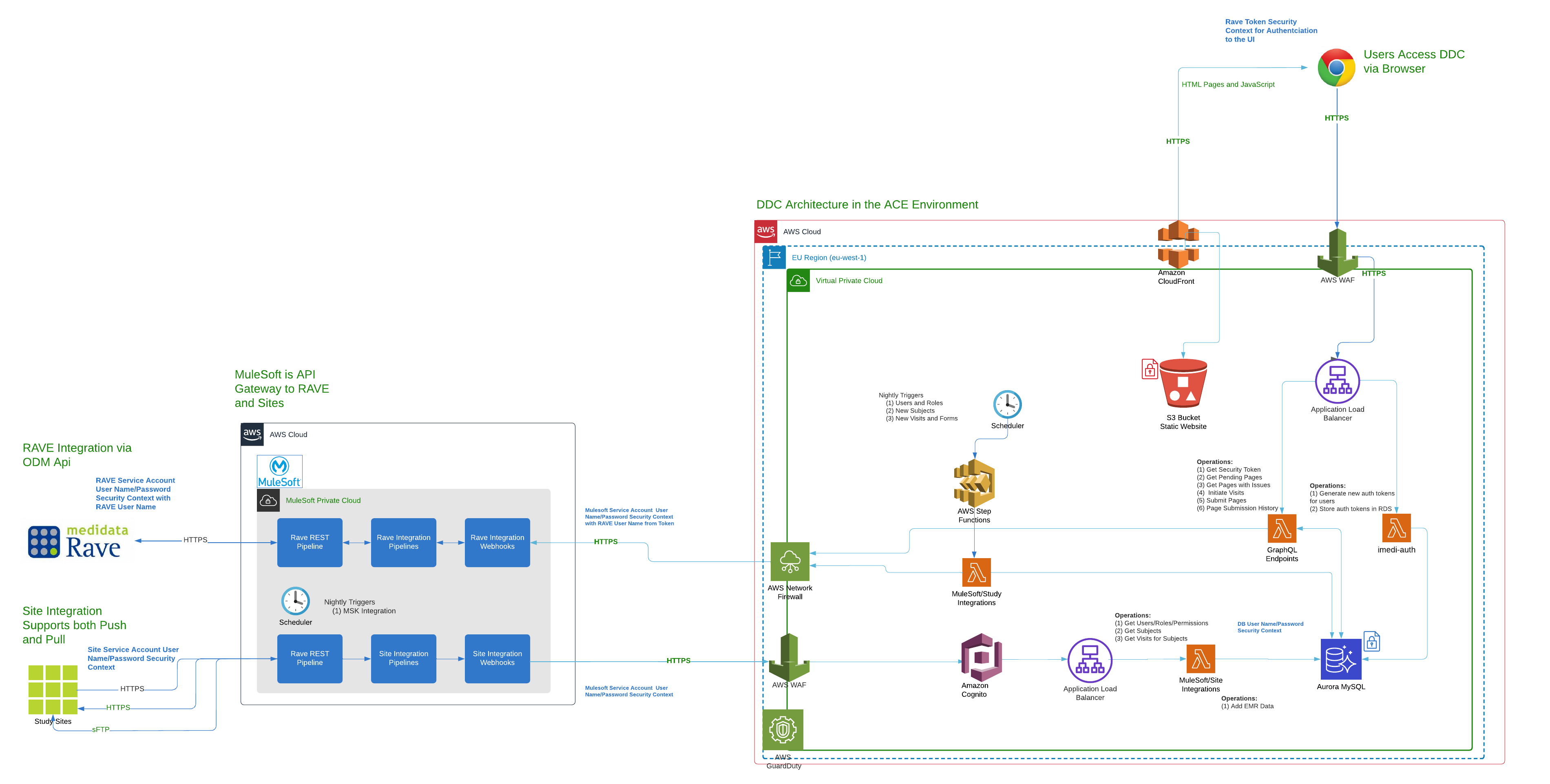
Architecture and Security Diagram
This diagram depicts the high level architectural components as well as the security components of the application and infrastructure.
Environment Diagram
This diagram depicts the environments that are spread across the two DDC AWS Accounts.
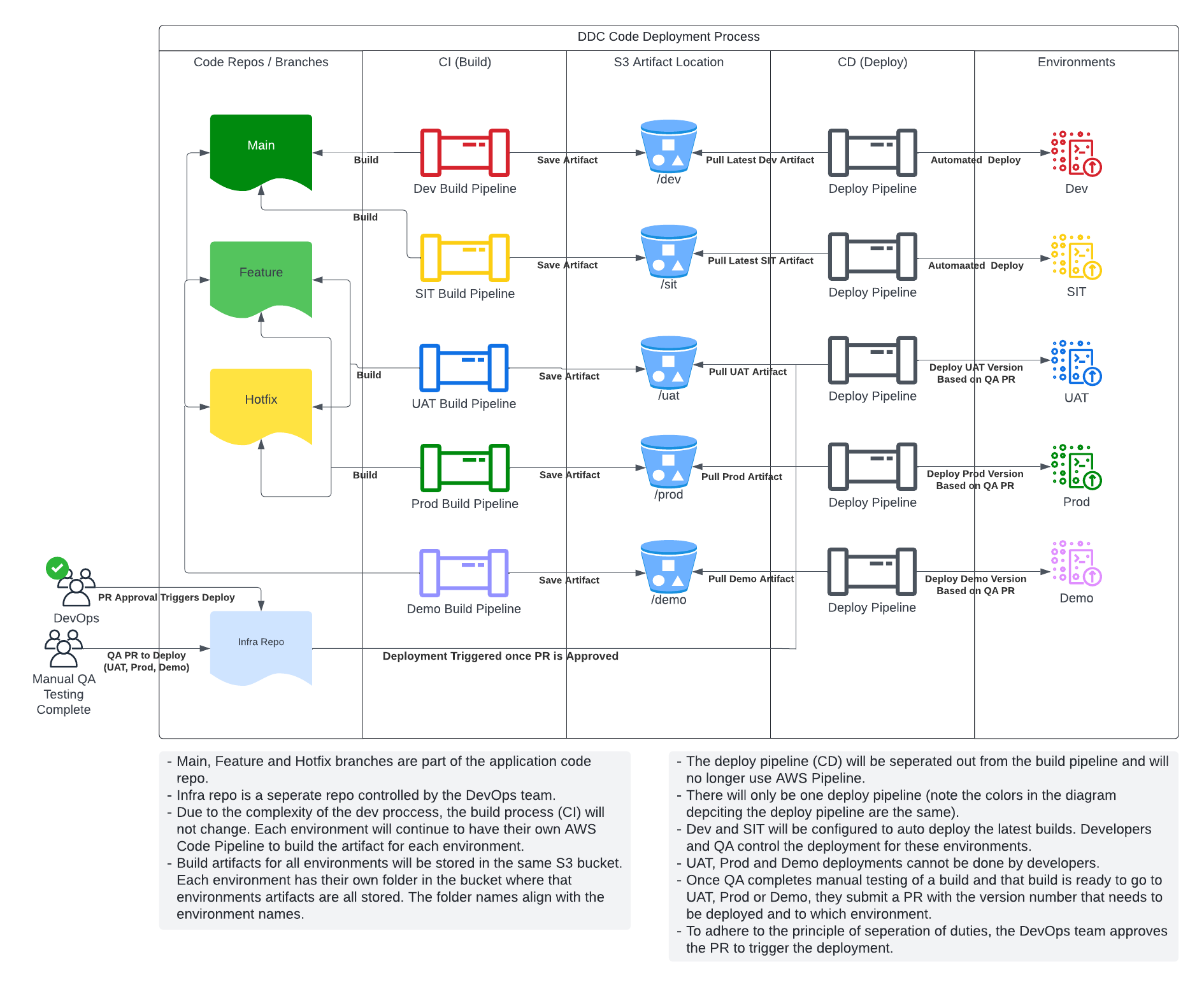
CI/CD Approach
Post-installation Requirements
Not applicable.