Loom Domain Verification:
-
Read Loom User Guide to understand the workspace name, license limit etc
-
First step for Loom setup is to perform domain validation on gene.com, roche.com, businesspartner.roche.com, contractors.roche.com
- Logon to Loom —> setting —> Workspace Settings —> security —> Authorize domains —> Add Domain
- Enter above domain and choose DNS TXT record. Save the info locally
- Raise a ticket to GNOC Team. URL and provide the DNS TXT record
- Once they add it, you can check the TXT record using below command after connecting to VPN
dig +noall +answer TXT roche.com | grep loomResult:roche.com. 3600 IN TXT "loom-site-verification=6a776599f06941f4b70bf9618427a964" - On Loom page status will change from pending to active
- Once the validation is complete GNOC team can remove the DNS TXT record from their system
SSO Setup:
- SSO can be enabled only if Domain Verification is complete
- SSO setup is done via OKTA. Initially ping federate was considered but Ping Federate team don’t support SCIM for authorization
- Ping Federate for Authentication and OKTA for Authorization did not work either
- SSO setup is done using below document.Signon URL and Entity ID on document and OKTA will be different. Details on Okta is correct Note: Below PDF will be downloaded to your local PC
- okta_saml_1.pdf
- okta_saml_2.pdf
- okta_saml_3.pdf
- okta_saml_4.pdf
- okta_saml_5.pdf
Directory Sync:
- Before directory sync creation, create AD groups
gred-loom-ace-admin,gred-loom-ace-creatorandgred-loom-ace-viewer - Endpoint and Bearer Token on document and OKTA will be different. Details on Okta is correct
- Follow the steps on the PDF Note: Below PDF will be downloaded to your local PC
- okta_sso_scim_1.pdf
- okta_sso_scim_2.pdf
- okta_sso_scim_3.pdf —> Type
loomMemberRoleon Directory Provider Value - Before proceeding to step 4, Go to okta —> Loom App —> Provisioning —> setting —> To App —> Click on Profile Editor and add below value
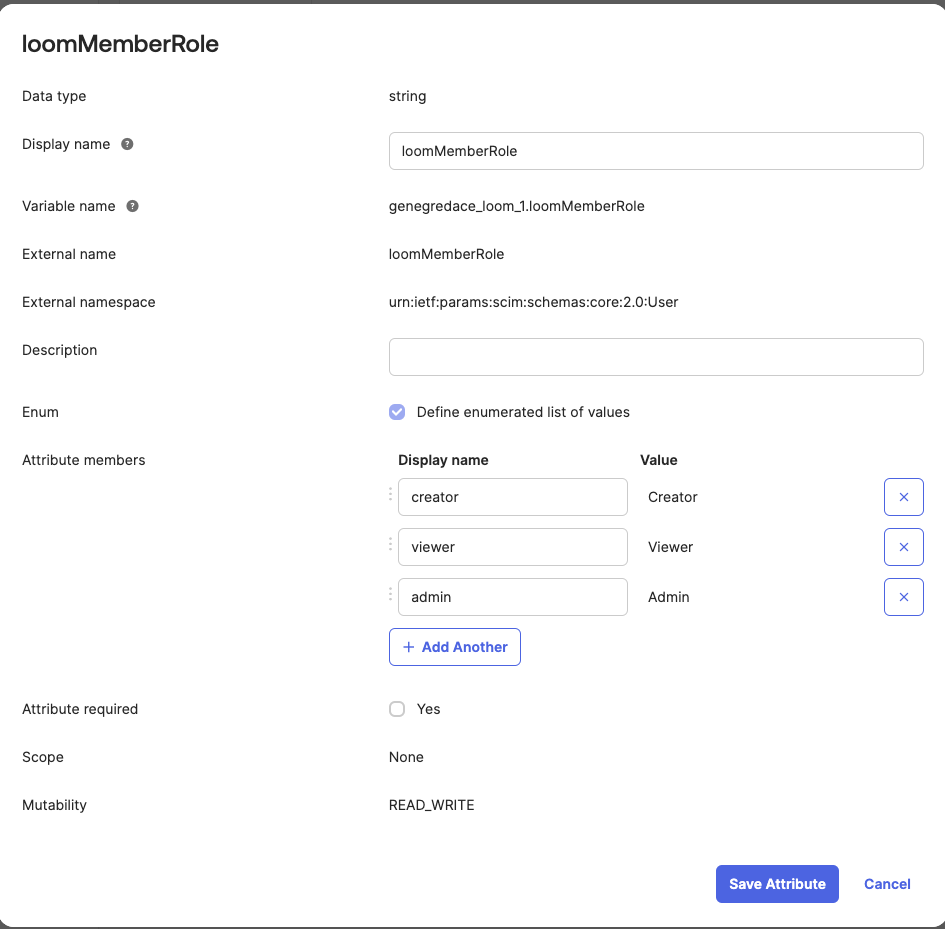
- okta_sso_scim_4.pdf
- On the below step “Assign to group” —> choose gred-loom-ace-admin —> click on edit —> On loomMemberRole at bottom choose admin Follow same procedure for other two groups
- okta_sso_scim_5.pdf
- Do not perform the Step 6. Push Group creates issue with AD group role and member role not matching on loom
- okta_sso_scim_6.pdf
- okta_sso_scim_7.pdf
Security Validation:
- Once above step is complete, go to Loom —> setting —> Workspace Settings —> security both Single Sign-On and Directory Sync should be ON
- Make sure
Enforce SSOis ON andDomain Captureis OFF - There are other workspace in Roche, if Domain Capture is ON other group members will be added to our workspace
- Private link settings choose
Users with your email domains. - Above options allows anyone on our company to see our videos but it will not work for now because we are allowing only users from above AD group ***** Until OKTA licensing is resolved, we will lock the video to ACE group. After resolution, we can have default group****
Common Issues:
- Check onboarding guide for Admin videos
- Users on AD group
gred-loom-ace-creatorwas added as creator. As an interim solution you can edit it by Loom —> setting —> Workspace Settings —> security —> members —> select user and change role - NEVER DELETE the domain under Loom —> setting —> Workspace Settings —> security, if it was deleted users from that domain will lose access
- Only way to restore it is to reach out to support and ask them to add the domain on their backend