Abstract
Terraform is an open-source infrastructure-as-code software tool from HashiCorp that DevOps uses for managing cloud infrastructure. HashiCorp also offers two commercial Terraform options:
- Terraform Cloud: HashiCorp managed Terraform-as-a-service.
- Terraform Enterprise: A self-hosted Terraform cluster delivered via Replicated.
This document provides instructions and context to enable ACE Infra-Team members to leverage HashiCorp Terraform Cloud to provision and manage ACE infrastructure. It is not intended as a Terraform Cloud tutorial. For that, please reference HashiCorp documentation or contact #ecdi-ace-infra-support slack channel.
Timeline
-
In April 2021, ACE-Infa purchased Terraform Cloud after performing a successful proof-of-concept and making a compelling security case to Roche Infosec. The highlights of this case are included in the Security Case section below.
-
In April 2024, we shifted the Terraform Cloud For Business License to the DevSecOps Enablement Team. Consequently, we migrated from the organization
gene-gred-aceto the new organizationgene-gcs-techops. This is our current position, and the information in this document has been updated accordingly.
Why we made this decision?
- To align with Enterprise Tool Chain instead of managing the tool at the Department Level
- It helps us to rely on Enterprise team to manage the security, patching, vulnerability management freeing up our team time to focus on other productive tasks
QuickStart
| Org Name | gene-gcs-techops |
| Org URL | https://app.terraform.io/app/gene-gcs-techops |
| Org Scope | - gred-ace-prod AWS account |
| AuthN/AuthZ | - Integrated with Roche SAML SSO. - Click Sign in with SSO. - Enter gene-gcs-techops for organization name.- Sign in with SSO credentials. - SSFFCT_ace-admins Roche LDAP group —> TFCloud superuser.- Other Roche LDAP group mappings can be configured upon request. |
| Migration Status | See #1319 ticket. |
| TF Agents | - Instances: techops-tfc-agent-prod - TF codes: techops-tfc-agent-prod-usw2 |
Architecture
Prerequisites
- Terraform workspace created in TFCloud for the desired component/environment.
- Terraform workspace configured for VCS Integration.
- Terraform Cloud Agents (TFC-Agents) deployed to AWS accounts and assigned to a TFC-Agent pool.
Workflow
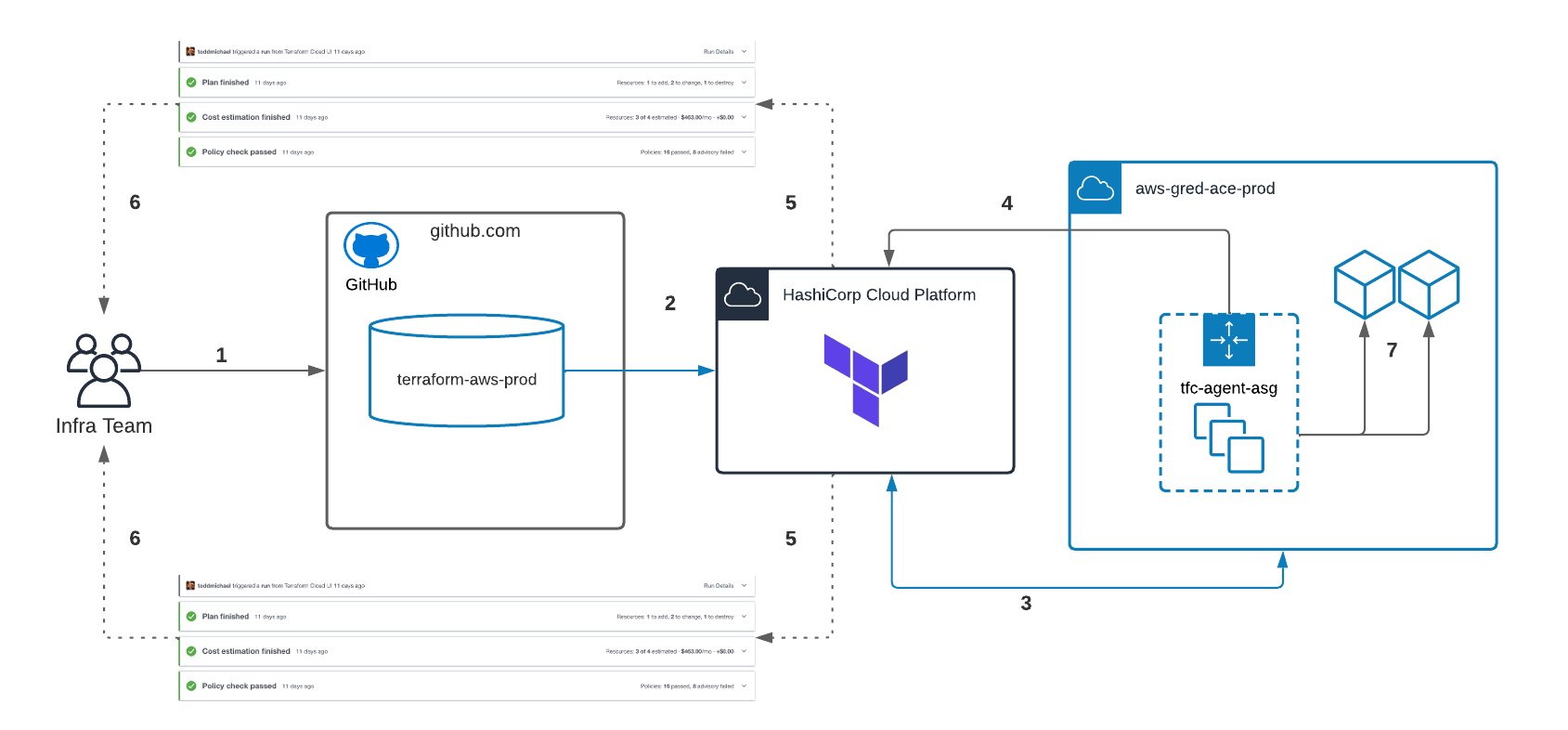
- Infra engineer pushes Terraform code to Github repository.
- Github sends
POSTrequest to TFCloud queueing up a Terraform job. - TFC-Agents (which continuously poll TFCloud for work) pickup and execute queued job from inside AWS environment.
- TFC-Agents run
terraform planand post results to TFCloud for review. - TFCloud runs Cost Estimation and Sentinel Policy Checks and posts along with plan results.
- Infra team performs review of code, plan, cost estimation and policy results and accepts/rejects the run.
- Accepted jobs yield a
terraform applyby TFC-Agent, thereby provisioning/updating infrastructure.
Terraform Cloud Agents
Terraform Cloud Agents are ACE-owned, deployed, and managed agents that execute our Terraform plans and applications. The deployment of the agent infrastructure itself is managed by Terraform Cloud.
Key Highlights:
- An AWS Autoscale Group (ASG) manages the EC2 instances that run the Terraform Cloud Agent.
- We deploy TF Agents as Docker images.
- The Docker images version is
1.15. - No need for permitting inbound API access from the Terraform cloud because cloud agents are pull-based.
- No need for storing AWS API credentials in Terraform workspaces as Terraform Cloud agents support IAM instance profiles.
EC2 or EKS?
Although we could use EKS for deploying agents, we chose EC2. The primary reason was to avoid disruptions to the Terraform agent caused by changes to the same Kubernetes cluster where the agent is located. We decided to adhere to the old method of deploying agents on EC2. However, they are now deployed as Docker images instead of services.
The only disadvantage is that we can’t monitor the health of the Docker container through our monitoring service. I consider this a limitation and plan to revisit it later if issues arise.
Troubleshooting
- First, check if the agents are active in the agent pool.
- The Docker image runs with the switch
--restart always, which means it will restart itself if any issues arise. If the server is rebooted, it will also restart itself. So, if the agent is not visible in the first step, there could be a permanent issue like registration issue due to usage restrictions. To perform checks, login to the techops-tfc-agent-prod instances and use the following commands to identify the issue:
# Check if the Container is Running
sudo docker ps

CONTAINER ID   IMAGE                      COMMAND                  CREATED          STATUS          PORTS     NAMES
4d31625524f9   hashicorp/tfc-agent:1.15   "/home/tfc-agent/bin…"   21 seconds ago   Up 18 seconds             tfc_agent

# Watch Logs
sudo docker logs tfc_agent

24-04-19T04:09:24.786Z [INFO]  agent: Starting: agent_name=techops-tfc-agent-prod-ip-10-17-148-53 agent_version=1.15.0
2024-04-19T04:09:24.824Z [INFO]  core: Starting: version=1.15.0
2024-04-19T04:09:25.230Z [INFO]  core: Agent registered successfully with Terraform Cloud: agent_id=agent-Uvkm31h533Z9efYf agent_pool_id=apool-8BLtGka6K4vD2Ddn
2024-04-19T04:09:25.306Z [INFO]  agent: Core version is up to date: version=1.15.0
2024-04-19T04:09:25.307Z [INFO]  core: Waiting for next job
Github & Terraform
-
Terraform Cloud should integrate with Terraform source code repository (github in our case) to manage the workspace and Terraform code
-
We use a generic account gredacs1 to achieve Terraform github Integration
-
Login steps to github using this account [use incognito window on Chrome]
- https://github.com/login —> Enter gredacs1_roche —> Prompts Signon with your identity provider —> Enter gredacs1@nala.roche.com —> SSO logon page username: gredacs1 and password (Obtain it from 1Password)
-
Using a different browser (important to use a different browser - Firefox)
- Logon to TF cloud using your username —> settings —> Version Control —> Providers —> Add a VCS Provider —> choose github.com (custom) —> Copy “register a new OAuth Application” url and paste it on chrome incognito window (opened for above step)
- Once you paste the url on Chrome, it will prompt to Click on Register application.
- After registration it takes you next page where you copy both Client ID, Generate a new Client Secret & click on update application
- Go to Terraform Firefox page, On Step 2 add name as gredacs1. Enter client ID, Client Secret and click connect & continue
- Click on Authorize gredacs1_roche. After authorization click on “Skip and finish”
- Make sure gredacs1 shows up on VCS providers on Terraform page
Resources
Security Case
Compliance
- 100% US hosted
- Annually penetration tested
- ISO/IEC 27001:2013 certified
- AICPA SOC 2 Type 1 certified
Data Storage
The table below, taken from HashiCorp’s website, depicts all state objects and their at-rest encryption status.